
Friday, 10 May 2013
 Find and Remove Duplicate Files!
 Sort out your image collection
 Tidy up your music collection

Wednesday, 31 October 2012
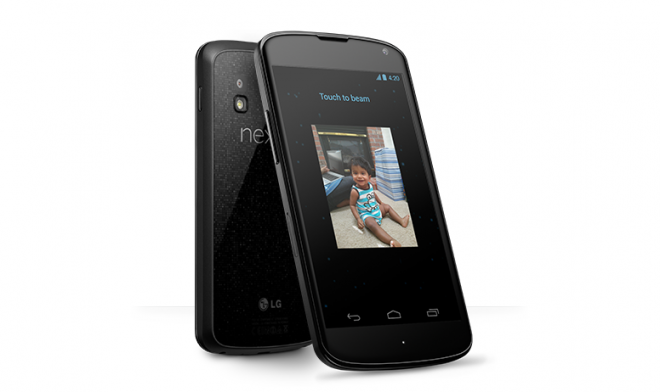
Google today announced the Google Nexus 4
Smartphone, the Google Nexus 10 Tablet and the 32 GB version of the
Google Nexus 7 tablet.
The Google Nexus 4, the newest
smartphone in the Nexus line-up from Google, was announced today for
availability starting next month in select markets.
“LG is proud and excited to play this role in helping
build the latest Nexus smart-phone,” said Dr. Jong-seok Park, President
and CEO of LG Electronics Mobile Com-munications Company. “Users will
be delighted by the perfectly balanced combination of form and function
with the latest generation of Android.”
The specs of the Google Nexus 4 include a
4.7-inch True HD IPS Plus display (1,280 x 768), an 8 megapixel rear
camera, Gorilla Glass 2, a Qualcomm Snapdragon S4 Pro processor, 2GB of
RAM and the latest rendition of Google Now. Turn-by-turn navigation via
Google Maps is included, as are 3D Maps, Street View and Indoor Maps.
The Nexus 4 will be sold unlocked, supporting some 200 carriers that
play by the GSM / HSPA+ rules. It’ll be made available in both 8GB and
16GB versions starting November 13 in the US, UK, Canada, Germany,
France, Spain and Australia, with pricing set for $299 (8GB) / $349
(16GB).
“This is the first time we collaborated with LG to
build a Nexus device,” said Andy Ru-bin, Senior Vice President of Mobile
and Digital Content at Google. “They brought an extraordinary amount of
talent to the project, and the result is a feature-packed device that
feels great in your hand, and blazingly fast under the hood.”
Press Release
Also, Google released the 32GB version
of the Nexus 7 tablet, signalling an end to the 8GB version. The 16GB
Google Nexus 7 has now taken center stage in Google’s Play Store, with
$199 netting you a slate that’s currently boasting a “now shipping”
status. Those willing to fork out $249 can get a 32GB model (also listed
as “In Stock”), while $299 provides access to a GSM-enabled 32GB model
that’ll hop onto cellular networks — unfortunately, that one’s listed as
“coming soon.”
And last but not least, out comes the
iPad rival from Google’s stable, the Google Nexus 10. The new tablet,
built in collaboration with Samsung, has one big bragging point — the
highest resolution display of any tablet on the market — a 2560 x 1600,
300ppi, 10-inch touchscreen. Google promises about 9 hours of continuous
video playback and about 500 hours of standby time. Despite being a
Nexus device, the new tablet picks up on the design language of the
Galaxy Tab 10.1 and Galaxy Note 10.1. It features a pair of front-facing
stereo speakers on either side of the display (when it’s held in a
landscape orientation) plus an 8-megapixel rear camera and a
1.9-megapixel front camera for video chats. Under the hood, there’s a
dual-core processor, 2GB of RAM and built-in NFC. It also gets a
built-in micro-HDMI port.
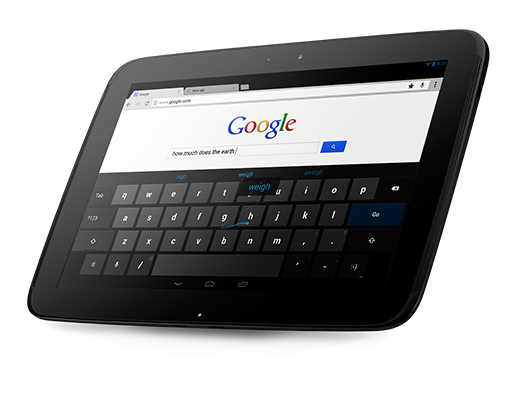
Like the Nexus 4, the Google Nexus 10
will ship with Android 4.2 Jelly Bean. One new 4.2 feature Nexus 10
users may enjoy is the ability to have multiple user profiles on a
single device. The Nexus 10 will ship on Nov. 13 at a price of $400 for
16GB of storage and $500 for 32GB.
Android 4.2 officially out
Android 4.2 Jelly Bean is now
official, following Google's announcement of the Nexus 4 and Nexus 10.
There are a lot of new things to cover, so let's not waste any time.

To do so, just tap on the icon on the top right once you have the notification drawer on. It took Google a while to copy the time-saving feature that TouchWiz, SenseUI and many other manufacturer Android skins implemented a while ago. Still, it's good to have it backed in right into the OS.

After they've been captured and saved as JPEG files you can view them and navigate around the whole image. You can share the image on Google+ or, if you feel like it, contribute the Photo Sphere to Google Maps.
The feature itself was inspired by Street View, as the Product Management Director for Android Hugo Barra points out. He adds that the photos pack embedded XML metadata in them allowing you to easily share them on Google+ and put them in Google+ photo albums, where your friends can view them as well.
Google Now is updated
Google has added a lot of new cards to its Google Now service. It now can feed data directly from Gmail, which will provide new cards, such as package shipments info.
Google Now also got cards for events, restaurant reservations, hotels, and flights. Some of them, like hotels and flights will be location specific. There are also new cards like movie screenings, concerts, stocks, public alerts and developing stories & breaking news.
Naturally, most of them won't be available world-wide at launch, but make sure that Google will work hard to bring them to more and more places in the future.

Naturally, the Gesture Typing feature benefits from the already existing Android word prediction, so you can just click on the words the keyboard suggests. This comes in addition to the offline voice typing service that Google offers, which makes for an all-round great messaging experience.

All you need to do is connect a wireless display adapter to an HDMI-enabled TV and then it'll start mirroring whats on your screen using DLNA. The new feature uses the Miracast protocol for streaming.
It's another feature most customs launchers had, but is only now making its way to the platform itself.

Expect Android 4.2 Jelly Bean to start its roll-out once the new Nexus family of devices goes on sale on November 13.
Source
Multiple user accounts
Android 4.2 Jelly Bean for tablets adds multiple user-support to the OS. This way everyone in the household can have an account, which once logged in, welcomes them to their own homescreen, background, widgets and apps. Even the games keep the individual high scores and levels.Settings center in the notifications drawer
The expandable notifications were a welcomed addition in Android 4.1, but now in Android 4.2, you can also take various actions like toggling Wi-Fi, adjusting screen brightness, go to Airplane mode, and more.To do so, just tap on the icon on the top right once you have the notification drawer on. It took Google a while to copy the time-saving feature that TouchWiz, SenseUI and many other manufacturer Android skins implemented a while ago. Still, it's good to have it backed in right into the OS.
Photo Sphere
With Android 4.0, Google introduced the Panorama capturing mode, and now with Android 4.2 Jelly Bean users will get a cool feature dubbed Photo Sphere. It's a panorama mode on steroids and allows you to capture photos in multiple directions (up, down, left, right).After they've been captured and saved as JPEG files you can view them and navigate around the whole image. You can share the image on Google+ or, if you feel like it, contribute the Photo Sphere to Google Maps.
The feature itself was inspired by Street View, as the Product Management Director for Android Hugo Barra points out. He adds that the photos pack embedded XML metadata in them allowing you to easily share them on Google+ and put them in Google+ photo albums, where your friends can view them as well.
Google Now is updated
Google has added a lot of new cards to its Google Now service. It now can feed data directly from Gmail, which will provide new cards, such as package shipments info.
Google Now also got cards for events, restaurant reservations, hotels, and flights. Some of them, like hotels and flights will be location specific. There are also new cards like movie screenings, concerts, stocks, public alerts and developing stories & breaking news.
Naturally, most of them won't be available world-wide at launch, but make sure that Google will work hard to bring them to more and more places in the future.
Gesture Typing
Forget about Swype, Android's very own Gesture typing is the new cool kid on the block. It works in a manner very similar to Swype -- you just Swipe your finger over the letters you want to type, lifting after each word is complete.Naturally, the Gesture Typing feature benefits from the already existing Android word prediction, so you can just click on the words the keyboard suggests. This comes in addition to the offline voice typing service that Google offers, which makes for an all-round great messaging experience.
Wireless TV integration
Better late than never, finally in this version of Android Google has allows you to wirelessly share the screen of your phone or display with a big screen TV set.All you need to do is connect a wireless display adapter to an HDMI-enabled TV and then it'll start mirroring whats on your screen using DLNA. The new feature uses the Miracast protocol for streaming.
It's another feature most customs launchers had, but is only now making its way to the platform itself.
Widgets on the lock screen
Widgets are a major part in Android and now you can assign a widget on the lockscreen as well. Think of the Music player widget on the lockscreen, but now you can assign another one there, so it's always just a click away.Daydream
Android 4.2 Jelly Bean isn't just business and no play. Google has integrated a little feature called Daydream, which is simply a sort of a screensaver. Once turned on, you can set it up to show photo albums, latest news from Google Currents and more when the device is either docked or idle.Various improvements
Android 4.2 Jelly Bean has a lot going for it, including some minor additions. You can now use pinch-to-zoom in Gmail for enhancing reading, triple-tap to magnify the entire homescreen and the pan and zoom with two fingers, as well as added speech output and gesture mode navigation for the visually impaired users.Expect Android 4.2 Jelly Bean to start its roll-out once the new Nexus family of devices goes on sale on November 13.
Source
Huawei announces Honor 2 with a quad-core CPU and 2GB RAM
Huawei has announced the Android-based Honor 2, which comes with some major hardware improvements over its predecessor.

The Honor 2 has a 4.5-inch, 1280 x 720 resolution display with a
pixel density of 326ppi. Inside, there is Huawei's K3V2 1.4GHz quad-core
processor with 2GB of RAM. The Honor 2 also has 8GB internal memory
with a microSD card slot. On the back is an 8 megapixel camera with
1080p video recording.
The Huawei Honor 2 will be releasing in China later this week for 1,888 yuan ($302).
Source
The Huawei Honor 2 will be releasing in China later this week for 1,888 yuan ($302).
Source
Wednesday, 24 October 2012
Windows 7 to Windows 8

Windows 7 to Windows 8: The system's biggest improvements
The most talked-about issue in the lead-up to Microsoft's launch of Windows 8 is the new Start screen, featuring the Modern UI. But Windows 8 has much more to offer than just a revamped interface.
The operating system includes fundamental enhancements, such as better multiple-monitor setups, an overhauled Windows Explorer, cloud-based account syncing, and new ways to personalize your desktop.
Here are 15 improvements to Windows that you'll want to check out in Microsoft's latest OS, including some new tools in the Modern UI.
Some of these improvements have no corresponding feature in Windows 7. If they do, we'll show you what they look like in Windows 7 and (for comparison) provide a screenshot showing how they are enhanced in Windows 8. Let’s dive in.
Account sync
Where to get started: Charms bar > Settings > Change PC settings > Sync your settingsWindows 8 can sync your user account settings across multiple PCs, saving you the trouble of having to customize your Windows environment manually on different computers.

Settings syncing requires having a Microsoft account connected to each Windows 8 PC.
Sharing
Where to get started: Charms bar > ShareSocial networking comes built into Windows 8's Modern UI, with the ability to share items between Modern UI apps.

Sharing has to be built in to third-party apps by the apps' developers, so sharing may not work with all Modern UI apps.
Better multiple-monitor setups
Where to get started: Control Panel > Appearance and Personalization > DisplayIn Windows 8, Microsoft adds several improvements to multiple-monitor setups. The traditional desktop interface now features separate taskbars and backgrounds for each display.

New dialog box for file copying
Where to get started: Traditional desktopThe new version of Windows Explorer in Windows 8 brings all of your current file copy jobs into a single window, instead of managing multiple windows as Windows 7 does.


Refresh and reset
Where to get started: Charms bar > Settings > Change PC settings > GeneralMany people make it a habit to create a personalized system image and reinstall Windows every 6 to 12 months to improve their hardware's performance. Microsoft aims to make that chore a little easier with the new refresh and reset features.


Picture passwords
Where to get started: Charms bar > Settings > Change PC settings > UsersFor people who are tired of using alphanumeric passwords, Windows 8 supports picture passwords.

Storage Spaces
Where to get started: Control Panel > System and Security > Storage SpacesBorrowed from the first version of Windows Home Server and then improved, Storage Spaces lets you manage internal and external storage drives as if they were one massive drive called a storage pool.

Automatically change window color
Where to get started: Right-click from Desktop > Personalize > Window ColorWindows 8 has a new feature that automatically adjusts the window color in the traditional desktop to match your background image.


Faster startup times
Where to get started: Power buttonWindows 8 includes a new hybrid system that Microsoft says will dramatically improve boot times compared to Windows 7. The new hybrid boot combines processes used in cold boots and hibernation mode, including kernel-session storage and the employment of multiple cores in parallel during boot.
New chkdsk
Where to get started: Computer > right-click Local Disk (C:) > Properties > Tools > Error CheckingA close cousin to the Blue Screen of Death (BSOD) is the Black Screen of Come On Already! (BSOCOA!), also known as chkdsk (check disk). Chkdsk is a utility that tries to fix file-system corruptions.


File History
Where to get started: Control Panel > System and Security > File HistoryMicrosoft has upgraded the Windows Backup and Restore features of Windows 7 with a new, easier-to-use Windows 8 tool called File History.


Settings app in the Modern UI
Where to get started: Charms bar > Settings > Change PC settingsMucking around in the Control Panel can sometimes be a pain, but in Windows 8 you can access some basic tasks via the new Settings app in the Modern UI. You can use the Settings app to adjust your system date and time, reinstall Windows, manage your HomeGroup, or access Windows Update.
You'll still need to use the Control Panel for most security tasks, power options, and power-user features (such as BitLocker encryption).
Search in Windows 8
Where to get started: Charms Bar > SearchThe search tool in Windows 7 is fairly powerful, letting you search for apps, as well as search inside files and folders.

Third-party apps must add search functionality, so search may not work in all of your apps.

Personalization
Where to get started: Windows 8 Start screenFor most users, personalization in Windows 7 means pinning apps to the taskbar, changing the desktop wallpaper, and selecting a user-account photo.
In Windows 8, personalization extends to showing you data you've arranged to highlight right from the Start screen's live tiles, including new email, social networking updates, and sports news about your favorite teams.

Secure boot
Where to get started: Charms bar > Change PC settings > General > Advanced startupA new secure-boot process, enabled by default on all new Windows 8 PCs, will prevent unauthorized operating systems and malware from loading on your machine. The system uses cryptographic signatures to verify that the operating system is authorized to load and that it hasn't been tampered with.

So much more
Microsoft has made many more improvements to Windows 8, including improved hardware acceleration for graphics, better printer discovery, and a new enterprise virtualization feature called Windows to Go.Windows 8 offers something for everyone from nothing-fancy users who just want to handle email, surf the Web, and watch videos, to advanced users with needs such as managing multiple external hard drives and reinstalling Windows.
Celkon A22 Race Review and Specifications
A22 Race is the latest Andriod ICS smart phone from
Celkon mobiles. Celkon A22 is competing with Micromax Canvas 2 and
Karbon A21. A22 is priced between Rs 9000 - Rs 10000. A22 has Dual core 1
GHz processors and has 8MP rear camera with smart flash. A22 runs on
android 4.0.4 ice cream sandwich and sports 4.5 inch capacitive screen
with a resolution of 800x480 pixels. A22 has 512MB RAM and has battery
capacity of 2000mAH.

Following are the specification of cekon A22 Race:
|
Operating System
|
Android OS, v4.0.4 (Ice Cream Sandwich)
|
|
Price
|
Between RS 9000 - 10000
|
|
Form Factor
|
Bar
|
|
GPU
|
Available
|
|
Frequency of Operation
|
GSM /GPRS 900/1800/1900, HSPDA 2100 MHz
|
|
Sim Slot
|
Dual Sim
|
|
Display Screen
|
4.5 inch capacitive screen with (800 x 480 pixels)
|
|
Processor
|
1GHz Dual core Processor
|
|
Sensors
|
G-Sensor, Proximity, accelerometer sensor available.
|
|
Camera
|
8 Mega Pixels Rear Camera with Smart flash and 0.3MP Front camera.
|
|
Zoom
|
Digital Zoom
|
|
Video Recording
|
Available
|
|
Video Playback
|
Supports HD
|
|
Battery Type
|
Li-ion
|
|
Stand By Time
|
Up to 180 hours
|
|
Talk Time
|
Up to 5 hours
|
|
Battery capacity
|
2000 mAH
|
|
GPRS
|
Available
|
|
Bluetooth
|
with A2DP
|
|
Wifi
|
Wi-Fi 802.11 b/g
|
|
Port
|
Micro USB v2.0
|
|
Edge
|
Yes
|
|
3G
|
HSDPA
|
|
GPS
|
Yes, A-GPS support
|
|
Internal Memory
|
512MB RAM
|
|
External Memory
|
Expandable to 32GB
|
|
Memory Slot
|
MicroSD
|
|
SMS
|
Available
|
|
MMS
|
Available
|
|
Email
|
Available
|
|
Ring Tone
|
Vibration, MP3, Polyphonic
|
|
Browser
|
Available, Google browser
|
|
Music
|
Loud Speaker, 3.5mm Audio Jack
|
|
Speaker
|
Available
|
|
Headset
|
Available
|
|
FM
|
Available
|
|
Colors
|
Black,White
|
Pros of the Smartphone:
- Dual core processor.
- 4.5 inch capacitive screen with 480×800 resolution
- Front camera for video chatting.
- 8MP Rear camera with flash.
- Low Price.
- High Battery capacity of 2000mAH.
Cons of this Smartphone:
- Low RAM
Sunday, 14 October 2012

Thursday, 11 October 2012
HIghend smartphones of 2012

The ongoing Consumer Electronics Show 2012 in Las Vegas, US, one of the technology's biggest extravaganza, saw a plethora of smartphone launches. While some of the new smartphones boast of impressive looks and features, others have unique design, hardware specs and user interface.
However, one thing common across most smartphones unveiled at the event is Google's mobile platform Android. The OS turned out to be a clear show-stealer with almost all smartphones running on Android's latest OS update Ice Cream Sandwich.
Here are the 10 hottest smartphones that created a big buzz at the show and are expected to hit the market in the coming month
Wednesday, 10 October 2012
5-common-security-mistakes-put-privacy-money-risk/

How vulnerable are you? Ask any person who’s been robbed if it came as a surprise – I guarantee you it did. As the saying goes, the thief always comes in the night when you’re sleeping, when you’re least prepared. But even when you’re awake, you might be passively committing security mistakes, thus inviting hackers and crackers to fiddle with your things.
Privacy and money are arguably the two most important things when it comes to the whole concept of security. We all want to protect our identities, our privacies, and definitely our financials. No one looks forward to the day when they check their bank statements and sees nothing but zeroes – or even worse, negatives.
Here are some of the most common security mistakes that are committed by computer users all over the world. Neglecting any of these will open you up to a world of vulnerability and put you only one or two steps away from identity theft, malware infections, or worse.
Mistake #1: Not Updating Anti-Malware
This is one of the most prevalent security tips out there: install anti-malware software and keep it updated! Yet as widespread as it is, people still ignore it. If you’re reading this and you don’t have an anti-virus or anti-malware program setup, go and do it now! There are plenty of top-quality FREE anti-malware programs out there. I personally use Advanced SystemCare and MalwareBytes.But just having one isn’t enough. You have to keep it updated – not just the program itself, but also the database of potential threats. Most programs have the option for automatically updating on a schedule or whenever you open the program. Keep them up-to-date or else they won’t keep you protected against the latest and greatest threats.
Mistake #2: Not Using A Firewall

Few are the people who use anti-malware software. Fewer are the people who use both anti-malware and a firewall. “Do I need to use both?” you might ask, and the answer is a resounding, “YES!” Anti-malware and firewalls are not the same things. They fulfill two different purposes, thus you will need both to keep yourself as secure as possible.
Think of a firewall as like a fence whereas anti-malware software is more like a shotgun. The fence is a general-purpose protective barrier that keeps out most unwanted intruders. However, your fence will occasionally have holes that allow entry by certain thieves. The fence does a lot of the work, but the shotgun comes in handy when the fence is breached.
In the same way, a firewall will keep out most malicious intentions. However, when a particular virus or Trojan makes it through and onto your computer, that’s when the anti-malware program comes in to clean up the mess.
Mistake #3: Unsafe Email Habits
After so many years, after the introduction of blogs, instant messaging, social networking, and everything else, email is still one of the most popular ways to communicate over the Internet. It’s also one of the most frequent ways in which users fall into the hands of scammers. Losing your identity because of a sneaky email can be devastating.Beware of phishing scams. Learn how to identify them and learn to avoid them like an angry swarm of wasps. If you receive an unsolicited email that seems sketchy, do not open it. Do not respond to it. Send it straight to the trash bin. But how will you identify a phishing scam? Look for fake phone numbers and addresses. Multiple spelling or grammar issues are often a dead giveaway, too. And if you don’t recognize the sender, always assume it’s spam.
There are lots of other email procedures you should observe to maximize your security. Here are 7 important email security tips you should know. Otherwise, just stay alert and keep an eye out for fishy emails (no pun intended).
Mistake #4: Universal & Stagnant Passwords

Password security can be tricky. Not because it’s difficult to find a strong password – which can be generated for free using any number of online password generators – but because password security is inconvenient. When I type in my password to log onto Facebook, I’m not thinking about how secure my password is. I’m thinking about what I’m going to say to my friend.
And in the interest of convenience, we tend to use the same password over and over again. My Gmail password becomes my Facebook password, which also becomes my forum password, and so on. But the problem here is that if anyone discovers your singular password, they can use it to unlock the rest of your accounts. Bad idea.
The solution, then, is to use different passwords for different accounts. But don’t stop there! Once a year, you should also change your passwords to something new.
Mistake #5: Giving Away Personal Information

Have you ever seen a sitcom or a comedy movie where someone accidentally lets slip an important piece of information? On the big screen, it might be funny, but it’s a pain in the butt when it happens in real life–and it doesn’t always happen in idle conversation.
In the world of video games, a vast majority of the perpetrators for hacked accounts are close friends or relatives of the account holder. You give your password to them so they can play on your account, then they stab you in the back and steal it. This could happen with Gmail, Facebook, or any other account that you share.
Or you might accidentally show your credit card number or social security number to someone. You might think it’s okay since that person is your friend, but you can never be too sure.
The best policy is this – if you don’t want the whole world to know about it, it’s best to keep it to yourself. That applies to passwords, PIN numbers, SSN numbers, CC numbers, home addresses, and anything else that could count as personal information. Keep your guard up.
Each and every one of the security mistakes listed in this article has the potential to really screw up your life. Sure, maybe you’ve shared your account with someone before or you’ve been using the same password for ten years and nothing bad has happened to you. Great! I’m glad that you’ve been so fortunate. But there are times when I’ve left my front door unlocked and I haven’t been robbed–that doesn’t mean it was a smart move.
Avoid making these mistakes and your personal security will be much stronger. You owe it to yourself. Stay safe and stay alert.
The Internet & The World Wide Web Are Not the Same Thing

The two terms “Internet” and “World Wide Web” have been used interchangeably ever since the Internet itself became a household “utility” as common as electricity or cable TV. People talk about “surfing the web” and “searching the Internet” like the two terms are one and the same.
Are you one of those people? It may be surprising for a lot of people to learn that the basic foundation of the two terms are very distinct. They were defined at a time when the Internet was first being formed, and despite the fact that people use them to refer to the same thing, they are actually very different pieces of the overall network we call the World Wide Web.
In this article, I’m going to separate these two terms into the pieces of the global network they represent. On the one hand, the Internet represents the hardware of the net – the infrastructure that is laid out and operates with a common protocol that makes everything all work. On the other hand, the World Wide Web is the software of the net – the vast network of applications and protocols that make everything communicate and “talk”. It is almost literally a “web” of links between not only the individual Internet access points, but also the millions, billions or trillions of individual links that form the massively growing network.
Internet vs. World Wide Web
So, basically, picture the global network we know as the Internet as made up of two layers. Picture a “solid” layer made up of all of the wires, servers, routers, switches, computers and everything else that makes up the physical networks across the entire world. That’s what we’ll call the “Internet”.How The Internet is Designed
Here’s the Reader’s Digest version of how the Internet came to be. The Internet was an infrastructure with a foundation going as far back as 1969 and the U.S. DoD’s Advanced Research Project Agency’s effort to create a strong communication network in case of war. This physical network connected critical Universities working on Defense projects with government and military departments. Eventually “ARPAnet” grew and transformed into the impressive system that we now know today as the “Internet”.The World Wide Web, on the other hand, is the brains of the whole thing. Take all of that hardware and infrastructure and picture installing software onto those servers and computers. These would include Internet browsers and other software that can communicate via the TCP/IP protocol that everything connected to the Internet uses to “talk”.

These days, you’re not just talking computers and web browsers. People now physically connect to the Internet with devices like tablets, smartphones, music devices, game stations, cable TV devices and even things like digital photo frames and digital cameras. Lots of devices are becoming “internet-enabled”, giving those devices the ability to connect to that massive Internet infrastructure through your home “access point”.
So, how does that all work? There you are with your tablet or laptop and you’re typing “www.makeuseof.com” into the web browser. Once you hit “enter”, you are requesting information from the World Wide Web – the software-based web of connections and information. The flow of your traffic once you hit the enter key looks like this.

From your computer, your request goes out of your router and to your ISP (Internet Service Provider). The traffic for that URL is directed based on the configuration of DNS servers in your area. Every registered domain is listed in DNS servers around the world – the entire purpose of those servers is to provide the IP address where information (web pages) are stored. The DNS server reports back with the IP information, so now the ISP knows where to go to retrieve the web page you’ve requested.
The traffic flows through Network Service Provider networks (NSP), which include networks like SprintNet, IBM, PSINet, etc. These are the major Internet backbone networks. If you could watch your packets of information flowing through the Internet like a river, you’d see that traffic arrive at your nearest NSP before slipping through sort of virtual “doorways” known as “Network Access Points” (NAP) that allow your packet to leap from one NSP to another.

Eventually, your request makes it to the remote computer – in this case a web server – which will reply to your request by serving up the web page. That traffic flows back across the Internet in the same manner. All of this happens lightning-fast, in the blink of an eye.
How The World Wide Web Is Designed
So, that is an explanation of how the Internet works, but that is only scratching the very surface when it comes to the World Wide Web. The WWW is not really limited to the structure of how hardware or network wires are laid out. The web is quite literally a web of links – online connections to pages, files, music, media, video, downloads and just about anything else that might be stored on a server or a computer somewhere that is “plugged in” to the massive physical network known as the “Internet”.
Picture every web page stored on a server as one “node” that can contain a long list of links to many other nodes on this massive network. Every link can be to absolutely any single piece of information – text, media and more – that is connected to the Internet. It is the interconnection of all of those links that forms what is known as the “World Wide Web”. It is specifically a web of links that forms this virtual online maze of information – a web that continues to grow and multiply at a pace that is far more rapid than the physical growth of the Internet itself.
So, the next time someone uses the terms “Internet” and “World Wide Web” as though they’re the same thing, you don’t really have to correct them. However, you can rest assured in your own knowledge that the Internet applies to the physical infrastructure – the interconnected devices of the net – while the “World Wide Web” applies to the web of software links that connect together the information stored on that massive network.
Together – the two things form the massive network that has transformed our world, and has connected every one of us in ways that never would have been possible without it. The two parts of the network are critical. They aren’t the same, but they both serve an important role in making the whole thing work.
Are you one of those people that always thought these terms were the same thing? Share your thoughts about the Internet and the World Wide Web in the comments section below. Do they still seem like the same thing to you, or do you now see the difference?
what-is-wireless-charging-and-how-exactly-does-it-work/
We live in a wireless world. Except we don’t. Sure, we can send huge
amounts of information across the airwaves, but the devices capable of
sending and receiving it are tied down to power cords. Batteries allow
some freedom but, eventually, we all have to come back around to the
familiar face of the power outlet.

What if we didn’t? What if we could charge anywhere, at any time? This is the promise of wireless charging, a concept that seems ripped from sci-fi. But it’s not – it’s real, and it’s available today. Let’s look at the reality and see what this technology can and can’t accomplish.

The term “wireless charging” usually refers to inductive charging. This technology uses a charging station that creates an alternating magnetic field. A device with the proper induction coil will receive energy from that field when it is placed nearby, making it receive power without a physical connection.
Cordless toothbrushes and other bathroom devices have used inductive charging for a long time. The technology has traditionally had problems with low efficiency and slow charging, but these were not considered a disadvantage for bathroom appliances that might be used for only a few minutes every day. Using inductive charging is safer, as well, because the conducting material is not exposed. Touch it with a wet hand? No problem.
Inductive charging is not magic. It needs specific hardware to function, and that hardware must be built into a device. Most devices do not have inductive charging coils built in to them, so a sleeve or adapter must be attached to enable inductive charging.

Inductive charging relies on magnetic fields. These can be strong but often have a short range of effect unless an incredible source of magnetism is available (the Earth has a magnetic field only because it also has a huge molten metal core). Small inductive charging stations are no different.
Let’s use a wireless toothbrush as an example. You place it on the stand and it charges. The contact between your toothbrush and the stand is not responsible for charging, however. It just seems that way because the field used to charge the toothbrush is so weak that its range is best measured in millimeters.
Charge speed and efficiency remain problems, as well. Attempting to charge a device using induction charging just isn’t as efficient as a direct, physical connection.
And then there’s the inductive coil. Though small and becoming smaller, it’s still a sizable piece of kit relative to the space available in a modern smartphone, tablet or ultrabook. This is a problem that will diminish with time but is relevant to today’s devices.

The lack of a common standard is another reason why wireless charging never gained much traction in consumer electronics. It wasn’t so long ago that most devices still relied on Ethernet cords for data and mobile broadband was restricted to ridiculously slow speeds. Wireless charging did not seem important before wireless communications.
That has changed thanks to the Wireless Power Consortium and its Qi (pronounced “chee”) standard. The WPC is an industry organization sponsored by various companies all seeking a standard for wireless charging. Its members include every big name in the mobile market besides Apple.
I talked about Qi Wireless after attending CES 2012. I was able to see a number of working prototypes as well as existing products that used wireless charging. These prototypes and niche solutions are now becoming a reality is mass market products. Nokia, for example, recently announced is new Lumia 920 will have wireless charging built in. The less expensive Lumia 820 will have an optional shell that enables the technology.
It’s clear that there is a future for wireless charging. There’s a lot of industry support behind WPC and a desire to bring the feature to market. We’ll likely see a number of additional devices with wireless charging announced this year and next.

Current inductive charging can be convenient, but the lack of range is a problem. It diminishes the technology to a convenience rather than a revolution.
Will this change? Maybe. There’s been plenty of research into the potential of long range wireless power and many different technologies have been used to achieve it. Lasers, microwaves and more powerful variants of inductive charging have been able to achieve longer transmission distances. Disadvantages have hampered wide-spread adoption. Tripping over a laser used for wireless power transfer, for example, could result in a vaporized foot.
It’s hard to say where a breakthrough in this field will come from. Apple is one candidate because the company has patented a device that can allegedly power devices at ranges up to one meter. The Wireless Power Consortium is also continually looking into better options. And then there’s Intel, who recently announced that it is working with Integrated Device Technology on a magnetic device that would be placed in a laptop and deliver power to nearby smartphones and peripherals.
Or a breakthrough could come from a small engineering company that’s barely known. This is a tough technical problem that will require both creative thinking and significant engineering know-how to solve. A major corporation may not be the first to find a solution.
Alas, we’re not there yet, but the renewed interest in this field brought by consumer electronics is appreciated. Perhaps the eternal quest of endless convenience can finally crack this technology wide open.
What if we didn’t? What if we could charge anywhere, at any time? This is the promise of wireless charging, a concept that seems ripped from sci-fi. But it’s not – it’s real, and it’s available today. Let’s look at the reality and see what this technology can and can’t accomplish.
How Wireless Charging Works
The term “wireless charging” usually refers to inductive charging. This technology uses a charging station that creates an alternating magnetic field. A device with the proper induction coil will receive energy from that field when it is placed nearby, making it receive power without a physical connection.
Cordless toothbrushes and other bathroom devices have used inductive charging for a long time. The technology has traditionally had problems with low efficiency and slow charging, but these were not considered a disadvantage for bathroom appliances that might be used for only a few minutes every day. Using inductive charging is safer, as well, because the conducting material is not exposed. Touch it with a wet hand? No problem.
Inductive charging is not magic. It needs specific hardware to function, and that hardware must be built into a device. Most devices do not have inductive charging coils built in to them, so a sleeve or adapter must be attached to enable inductive charging.
The Disadvantages Of Inductive Charging
Inductive charging relies on magnetic fields. These can be strong but often have a short range of effect unless an incredible source of magnetism is available (the Earth has a magnetic field only because it also has a huge molten metal core). Small inductive charging stations are no different.
Let’s use a wireless toothbrush as an example. You place it on the stand and it charges. The contact between your toothbrush and the stand is not responsible for charging, however. It just seems that way because the field used to charge the toothbrush is so weak that its range is best measured in millimeters.
Charge speed and efficiency remain problems, as well. Attempting to charge a device using induction charging just isn’t as efficient as a direct, physical connection.
And then there’s the inductive coil. Though small and becoming smaller, it’s still a sizable piece of kit relative to the space available in a modern smartphone, tablet or ultrabook. This is a problem that will diminish with time but is relevant to today’s devices.
Wireless Charging Comes To The Mass Market
The lack of a common standard is another reason why wireless charging never gained much traction in consumer electronics. It wasn’t so long ago that most devices still relied on Ethernet cords for data and mobile broadband was restricted to ridiculously slow speeds. Wireless charging did not seem important before wireless communications.
That has changed thanks to the Wireless Power Consortium and its Qi (pronounced “chee”) standard. The WPC is an industry organization sponsored by various companies all seeking a standard for wireless charging. Its members include every big name in the mobile market besides Apple.
I talked about Qi Wireless after attending CES 2012. I was able to see a number of working prototypes as well as existing products that used wireless charging. These prototypes and niche solutions are now becoming a reality is mass market products. Nokia, for example, recently announced is new Lumia 920 will have wireless charging built in. The less expensive Lumia 820 will have an optional shell that enables the technology.
It’s clear that there is a future for wireless charging. There’s a lot of industry support behind WPC and a desire to bring the feature to market. We’ll likely see a number of additional devices with wireless charging announced this year and next.
The Future Of Wireless Charging
Current inductive charging can be convenient, but the lack of range is a problem. It diminishes the technology to a convenience rather than a revolution.
Will this change? Maybe. There’s been plenty of research into the potential of long range wireless power and many different technologies have been used to achieve it. Lasers, microwaves and more powerful variants of inductive charging have been able to achieve longer transmission distances. Disadvantages have hampered wide-spread adoption. Tripping over a laser used for wireless power transfer, for example, could result in a vaporized foot.
It’s hard to say where a breakthrough in this field will come from. Apple is one candidate because the company has patented a device that can allegedly power devices at ranges up to one meter. The Wireless Power Consortium is also continually looking into better options. And then there’s Intel, who recently announced that it is working with Integrated Device Technology on a magnetic device that would be placed in a laptop and deliver power to nearby smartphones and peripherals.
Or a breakthrough could come from a small engineering company that’s barely known. This is a tough technical problem that will require both creative thinking and significant engineering know-how to solve. A major corporation may not be the first to find a solution.
Conclusion
Wireless charging has huge potential. This is why people have been working on it for well over a century. If we could move power without wires we’d be able to re-think not just consumer electronics but the infrastructure used by the entire human race.Alas, we’re not there yet, but the renewed interest in this field brought by consumer electronics is appreciated. Perhaps the eternal quest of endless convenience can finally crack this technology wide open.
Subscribe to:
Posts (Atom)